
Microsoft Canada Time Zone Changes: KB 5134344 and Outlook Calendar Drift
📅 Last Updated: November 5, 2026 | TechVerveMedia
TechVerveMedia Analysis
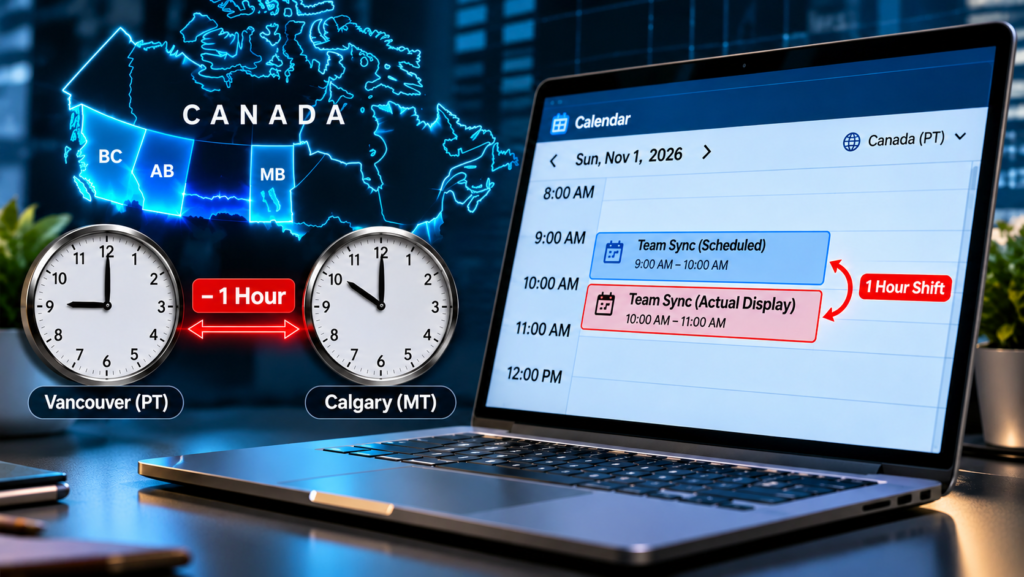
Microsoft Canada time zone changes took effect on November 1, 2026, after affected areas of British Columbia, Alberta and Manitoba stopped moving their clocks back. The result is a one-hour Outlook calendar time drift bug for some meetings, along with scheduling risks in Power Automate, Azure Automation, Microsoft Fabric, Teams Rooms and Dynamics 365.
Microsoft’s central response is KB 5134344, “Canada 2026 time zone changes: Guidance for Microsoft products.” The KB was originally published on October 26, 2026 and last updated on November 2, 2026. support.microsoft
Table of Contents
Why the clocks did not change
At 02:00 local time on November 1, 2026, affected locations in British Columbia, Alberta and Manitoba remained on permanent daylight time instead of returning to standard time. British Columbia stayed at UTC−07:00, Alberta at UTC−06:00 and Manitoba at UTC−05:00.
Microsoft also says affected Northwest Territories locations, including Yellowknife and Inuvik, align with the Alberta change. Northwestern Ontario locations align with the Manitoba change.
The Microsoft Canada time zone changes affect more than the clocks themselves. Calendar entries, automation triggers and scheduled jobs using older US-linked time-zone labels can now run or display one hour away from the intended local time.
Microsoft Canada Time Zone Changes: Outlook Calendar Drift
The most visible issue is the Outlook calendar time drift bug. Meetings created with older US and Canada time-zone labels can appear one hour early or late after the regional change.
Microsoft says users must select the new regional time zone and update upcoming meetings, especially recurring series. Existing calendar events do not migrate automatically.
The affected Outlook scenarios include:
- Existing events still tied to old US-linked time zones.
- Recurring meetings that continue beyond November 1, 2026.
- Future meetings that need the correct regional zone selected.
- Mobile devices that must use the correct regional time zone.
Microsoft’s Outlook guidance identifies the correct new choices as Pacific Time (British Columbia), Mountain Time (Alberta) and Manitoba.
KB 5134344 Microsoft guidance: what admins need to know
The KB 5134344 Microsoft guidance separates products into confirmed impact, potential impact under validation, no impact expected, and impact mitigated. That distinction matters because a product being validated is not the same as a product with confirmed breakage.
Microsoft says administrators should install the latest Windows updates, ask affected users to update Outlook, review recurring meetings, and test meetings, free/busy, Bookings, Shifts and SharePoint regional settings with a pilot group.
The KB also advises admins to include #CanadaTimeZone in the title of any Microsoft support case for unexpected behavior.
Confirmed impact
Microsoft’s at-a-glance table lists the following products under confirmed impact: Outlook and Exchange Online calendars, Teams Rooms on Windows, Teams Auto Attendant, SharePoint on-premises, Power Automate Desktop and Cloud flows, Fabric, Bookings, and Dynamics 365 Finance and Operations.
The detailed confirmed-impact section also adds Teams Events and Azure Automation. This means the overview table and detailed section should be read together, because Microsoft added those products in its November 2 update.
For Outlook and Exchange Online, Microsoft planned an Exchange Online PowerShell cmdlet to remediate non-recurring meetings by November 4, 2026. Recurring-meeting remediation remained in development, with no final release date confirmed in the KB. .
Teams Rooms on Windows could display time one hour behind Windows. Microsoft says admins should update Microsoft Edge and WebView2, then verify that the room display matches Windows.
Teams Auto Attendant is confirmed as affected because the correct time zones may not have been available on November 1. Microsoft directs admins to manually update time zones using its posted guidance.
Teams Events is also confirmed as affected for the same reason. Microsoft says organizers can use temporary alternatives until the correct regional choices are available.
SharePoint on-premises is confirmed as affected, with Microsoft listing an update for November 10, 2026.
Teams Events temporary mappings
For Teams Events, Microsoft provides these temporary time-zone alternatives:
- Alberta: (UTC−06:00) Saskatchewan.
- British Columbia: (UTC−07:00) Yukon.
- Manitoba: (UTC−05:00) Eastern Time (US & Canada).
Microsoft classifies this as a workaround while the correct time zones remain unavailable.
Power Automate temporary mappings
Power Automate Desktop and Cloud flows can show a one-hour drift when they use US-linked Mountain, Pacific or Central time zones. Microsoft provides separate temporary mappings for Power Automate.
Use these mappings for Power Automate:
- Alberta: Canada Central Standard Time (Saskatchewan).
- British Columbia: Yukon Standard Time; use Arizona for recurrence and schedule triggers.
- Manitoba: SA Pacific Standard Time (Bogotá).
Microsoft also says admins should update recurrence and schedule triggers, Convert time zone actions and time-zone expressions. The old Alberta, British Columbia and Manitoba Standard Time selections should not be used until new province-specific IDs are supported.
Azure Automation temporary mappings
Azure Automation is separately listed under confirmed impact. Microsoft says flows using US-linked Mountain, Pacific or Central zones can observe a one-hour drift from November 1, 2026.
Use these temporary mappings for Azure Automation:
- Alberta: Canada Central Standard Time (Saskatchewan).
- British Columbia: Yukon Standard Time; use Arizona for recurrence and schedule triggers.
- Manitoba: SA Pacific Standard Time (Bogotá).
Microsoft says admins should update recurrence and schedule triggers, time-zone conversion actions and time-zone expressions. The update timeline for Azure Automation remains unconfirmed in the KB.
Fabric and Power BI temporary mappings
Fabric has different temporary mappings from Power Automate and Azure Automation. Microsoft’s Fabric guidance says admins should update the Fabric schedule itself, not merely the device time setting.
Use these mappings for Fabric and Power BI Service schedules:
- Most of British Columbia: Arizona.
- Alberta and affected Alberta-aligned locations: Saskatchewan.
- Manitoba: Bogotá, Lima or Quito.
Microsoft says admins should preserve the intended local run time, save the schedule, verify the next scheduled run and monitor the first run after the transition.
These are temporary choices. Microsoft says Fabric schedules should move to the new regional choices once they become available in the scheduling experience.
Potential impact under validation
Microsoft classifies Power Pages under potential impact (under validation), not confirmed impact. The company says server-formatted dates can appear one hour off in Liquid output, relative-date filters and Excel exports, and a service fix is in progress with a December 12 milestone.
Microsoft also lists Teams desktop, web and mobile clients, other Teams devices, and Outlook for iOS, Android and Mac under potential impact while validation continues. Administrators should keep those clients updated and test meetings scheduled after November 1.
Microsoft has also added the Teams Shifts App to the products under validation. The KB says admins should follow Message Center post MC1532245 for interim guidance.
This means readers should not assume Teams clients, Outlook mobile and Mac clients, or the Shifts app are unaffected until Microsoft updates the KB.
Bookings and SharePoint Online status clarified
Microsoft’s KB presents Bookings and SharePoint Online in more than one status category, so administrators should read the detailed sections rather than relying only on the at-a-glance table. The KB’s overview lists both products under “No impact expected,” while its detailed guidance provides additional mitigation information.
For Bookings, the at-a-glance table lists it under both “Confirmed impact” and “No impact expected.” The detailed “Impact mitigated” section says updates have been released and introduce new time-zone options for new Bookings.
In practical terms, Bookings should be treated as a product that had a documented impact and has now received a released update. Administrators should still confirm that new bookings use the correct regional time zone and test existing booking workflows.
For SharePoint Online, the at-a-glance table lists it under “No impact expected.” However, the detailed “Impact mitigated” section says a configuration update was being deployed through the regular release train and was scheduled to reach the Canada region by October 29, 2026.
Microsoft’s change log says SharePoint Online was moved from “Potential impact” to “Impact mitigated” on October 27, 2026. This suggests the “No impact expected” overview entry should be read alongside the later mitigation record, not as a contradiction that removes the need to verify tenant settings.
Administrators should therefore validate SharePoint regional settings in their own tenant, especially for sites, lists and workflows that depend on local time. Microsoft itself recommends testing SharePoint regional settings with a pilot group.
Impact mitigated
Microsoft says impact has been mitigated for several products, though some still require software updates or user action. These include Dynamics 365 Sales, Customer Insights, Customer Service, Contact Center, Business Central, Field Service, Project Operations and Commerce, plus SharePoint Online.
For example, Microsoft’s detailed mitigation section says SharePoint Online’s configuration update was scheduled to reach the Canada region by October 29, 2026, although the KB’s at-a-glance table also lists SharePoint Online under “No impact expected.”
Dynamics 365 Field Service has an available app update, while mobile-app fixes remain in progress with published workarounds.
No impact expected
Microsoft separately lists products where no impact is expected. These include Power Apps canvas and model-driven apps, Power Automate Process Mining, Teams Graph, Bookings, SharePoint Online and Azure products outside Azure Automation.
For SharePoint Online and Bookings, however, Microsoft’s detailed sections provide mitigation or released-update information, so administrators should not rely on the overview classification alone.
This is a different status from “impact mitigated.” A product with no impact expected has not necessarily required a fix, while a mitigated product required Microsoft action or an update.
Azure Automation is the important exception. It is not covered by the broader “Azure products” no-impact category and is listed separately under confirmed impact.
Windows updates and unsupported versions
Microsoft says administrators should ensure Windows devices used to access Microsoft 365 in affected regions have the latest updates. Devices on unsupported Windows versions will not receive the time-zone update.
The KB applies to Windows 11 versions 23H2, 24H2, 25H2 and 26H2, Windows 10 Enterprise LTSC 2021, and Windows Server 2016, 2019, 2022 and 2025.
How to fix Outlook meetings safely
Microsoft’s Outlook guidance says users should first change their Outlook calendar time zone, then update upcoming events and recurring meetings.
For users, the practical sequence is:
- Install available Windows updates and restart if prompted.
- In new Outlook or Outlook on the web, go to Settings → Calendar → View → Time zones, select the correct regional zone and save.
- In classic Outlook, go to File → Options → Calendar → Time zones, select the matching zone and click OK.
- Open each future meeting you organize, select the time-zone globe control, choose the new zone, then save or send it.
- For recurring meetings, use Edit Series in new Outlook or Outlook on the web, or Edit Recurrence in classic Outlook.
- Recreate meeting exceptions after editing a recurring series, because Microsoft says series exceptions are reset when the time zone is changed.
Microsoft also states that only the organizer can change a meeting that includes attendees.
Common one-hour mistakes
The most common errors happen when only part of the environment is updated. A device can show the correct time while meetings, flows and scheduled reports remain wrong.
Avoid these mistakes:
- Leaving meetings on Pacific Time (US & Canada), Mountain Time (US & Canada) or Central Time (US & Canada).
- Changing only the Windows or Outlook display zone while leaving future meetings and recurring series unchanged.
- Assuming existing calendar events will migrate automatically.
- Editing a recurring series without recreating its exceptions.
- Allowing a non-organizer to repair an attendee meeting.
- Using Fabric mappings in Power Automate or Azure Automation.
- Using Power Automate mappings in Fabric.
- Leaving old US-linked zones in Power Automate, Azure Automation or Fabric schedules.
Quick answers
Did all of Canada stop changing clocks?
No. The change affected listed locations in British Columbia, Alberta and Manitoba, along with aligned Northwest Territories and northwestern Ontario locations.
Do I need to recreate every meeting?
No. Microsoft says users should update upcoming events and recurring meetings while preserving the intended local time.
Is Teams affected?
Teams Rooms on Windows, Teams Auto Attendant and Teams Events are confirmed as affected. Core Teams desktop, web and mobile clients, other Teams devices and the Shifts app remain under validation.
What should I do if a meeting is still wrong?
Check the event’s own time zone, confirm Windows updates, then follow Microsoft’s Outlook guidance. If the issue persists, open a Microsoft support case with #CanadaTimeZone in the title.
TechVerveMedia Verdict
This is primarily an operational timing failure rather than a widespread data-loss event. The risk is concentrated in old time-zone labels, unpatched devices, recurring meetings and automation schedules that were not updated to the new regional zones.
The safest response is staged: patch Windows endpoints first, update Outlook and calendar entries next, then inventory Power Automate, Azure Automation and Fabric schedules. Microsoft itself recommends pilot testing before broad deployment.
Administrators should also keep a reversal log for every temporary mapping. Microsoft says the Fabric workarounds should be replaced when the new regional choices become available.
The Bottom Line
Microsoft Canada time zone changes will not repair old meetings, recurring series or automation schedules on their own. Someone has to install the relevant updates, select the correct regional zone and review affected calendar and workflow settings.
The KB 5134344 Microsoft guidance remains the authoritative source for current status, workarounds and release timing. Microsoft says it will continue updating the KB as product teams confirm impact, release fixes or publish new guidance.
Sources
- Microsoft Support, KB 5134344: Canada 2026 time zone changes: Guidance for Microsoft products
- Microsoft Support: Outlook Time Zone Changes for British Columbia, Alberta, and Manitoba
- Microsoft Learn: Canadian time zone changes for Fabric schedules